Shading with an Apple Pencil: pressure and tilt, one light layer at a time
To shade with an Apple Pencil, press lightly and build the colour up in thin layers. Tilt the Pencil over for broad, soft areas and bring it upright for edges.
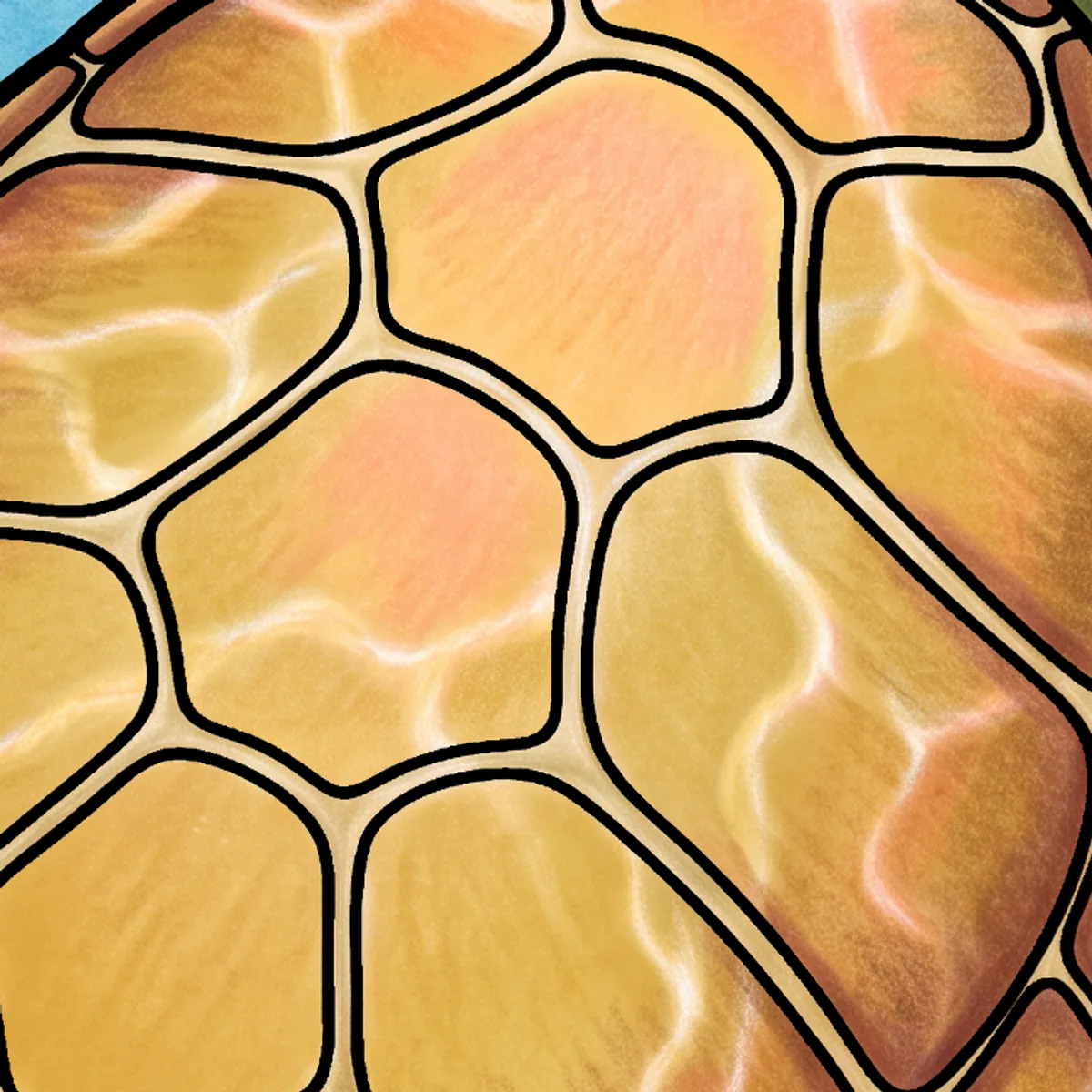
A coloured pencil on paper has three controls, and most people learn them without noticing. Press harder and the colour gets darker and denser. Tip the pencil over and the side of the lead lays down a broad, soft band. Go back over the same patch and the colour builds, each layer a little richer than the one under it.
An Apple Pencil tells the iPad the first two, how hard you're pressing and the angle you're holding it at (the USB-C Pencil skips pressure, so with that one you'll lean on tilt and layers). In PencilDrop each stroke goes down over the ones before it, so layers build much as they do on paper. Nearly everything below comes from colouring on paper, and it works the same with a tin of real pencils.
Do you need to shade at all?
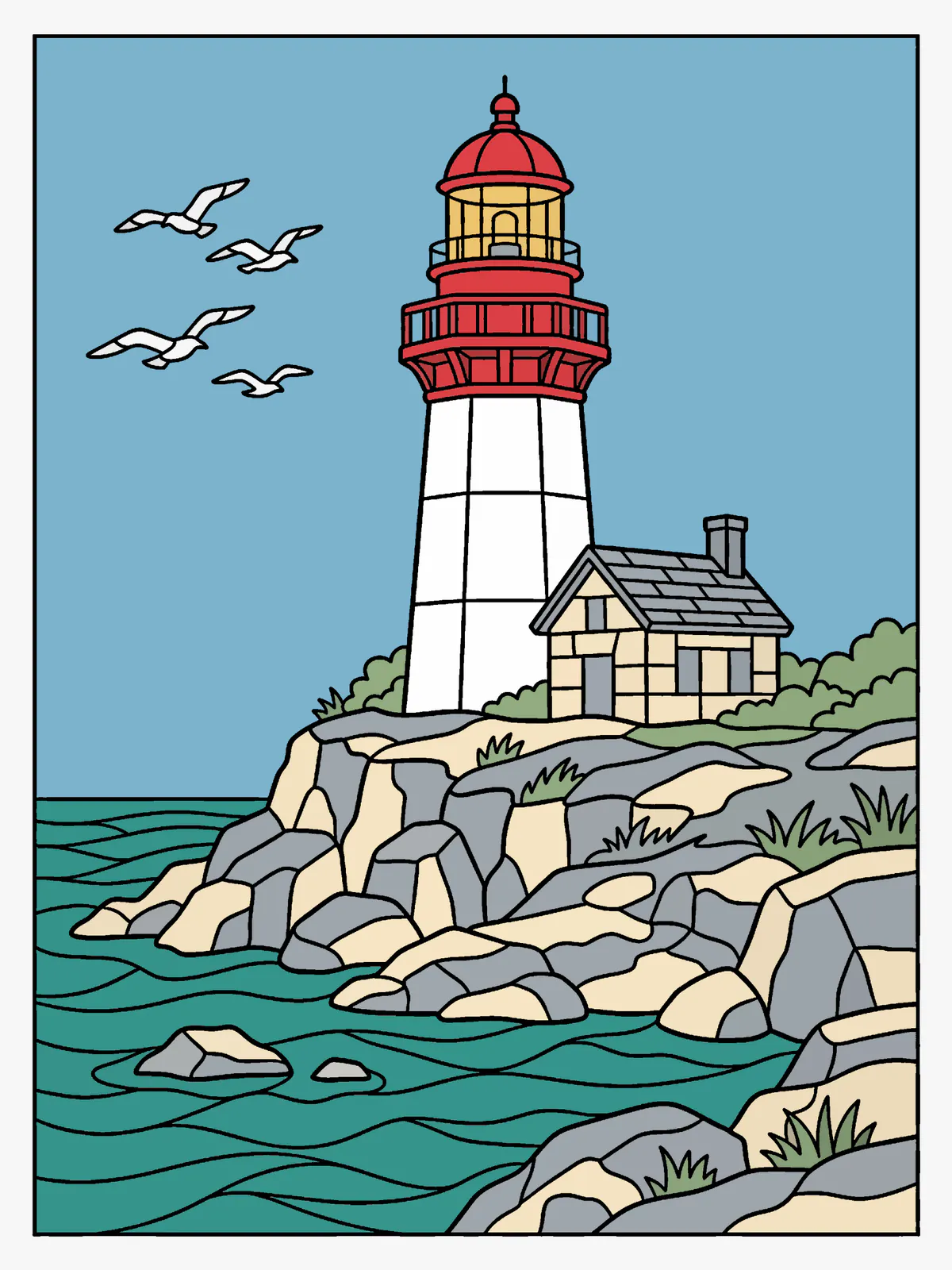
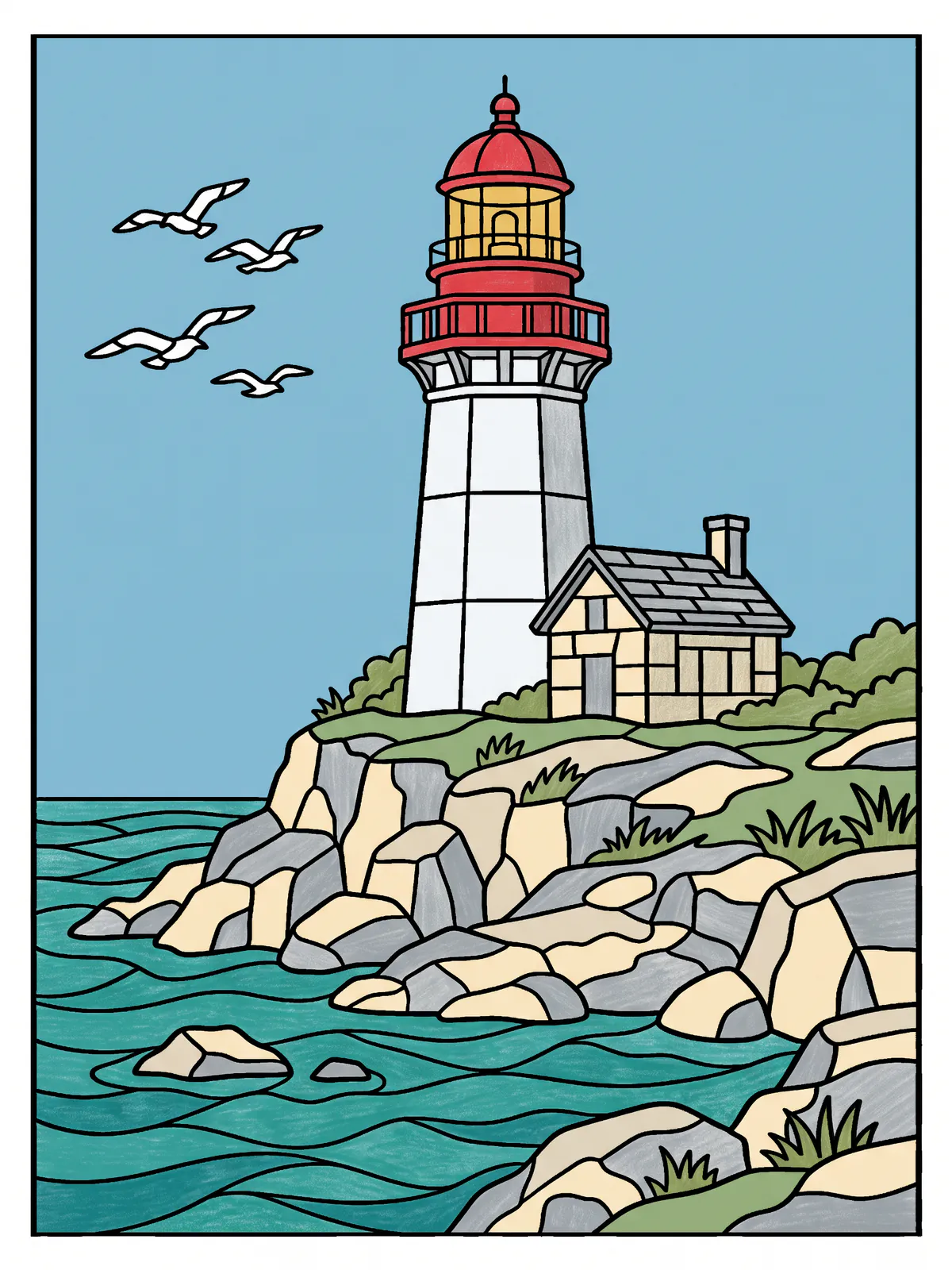
No. A tap on each shape fills it with one colour, and a page filled that way is finished and ready to enter. When you want a bit more, decide where the light is coming from and give each main shape a slightly darker side facing away from it. That alone makes a flat page look lit.
How hard should you press?
Lighter than you think. The most common mistake is pressing as if the Pencil were a ballpoint. A coloured pencil does its best work at the light end of its range, and so does this one. Lay in a patch at a quarter of the pressure you'd use to sign your name, then go over it again at the same pressure. Two light passes give a smoother, more even tone than one heavy one, and you still have most of the range left for the darks.
Think of pressure as a dial from 1 to 10 and spend most of an evening between 2 and 5. If you catch yourself at 8, you're probably rushing.
Shading with the Pencil tilted
Hold the Pencil upright and you get a line. Lay it over, the way you'd shade with the side of a real pencil, and the pencil tool widens into a soft band with the grain showing through. That's how to fill a big area without stripes: broad, light, tilted strokes that overlap by about a third. Keep the direction steady within a shape and change it between shapes, so each has its own grain.
If your iPad and Pencil support hover, hold the tip just above the glass before you touch down. The outline shows the mark you're about to make, and as you tilt, the circle stretches into an ellipse.
Come back upright for details and edges.
Building colour in layers
Look closely at a rich patch of colour and you'll usually find three or four colours laid lightly over each other. A warm shadow on a leaf might be the green first, then a thin pass of red to grey it down, then a touch of blue in the deepest corner. Each pass is light, and the depth comes from the stack.
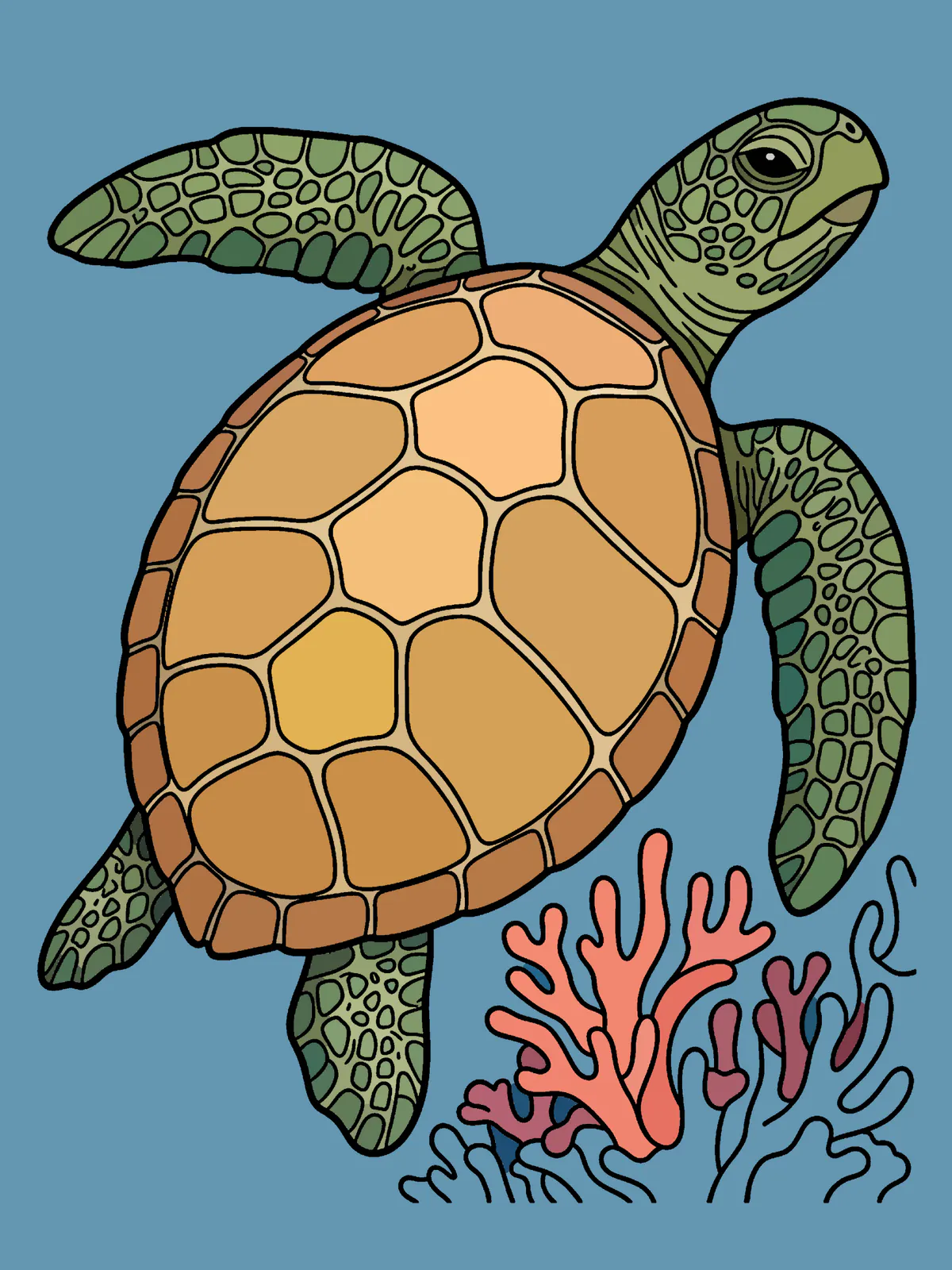
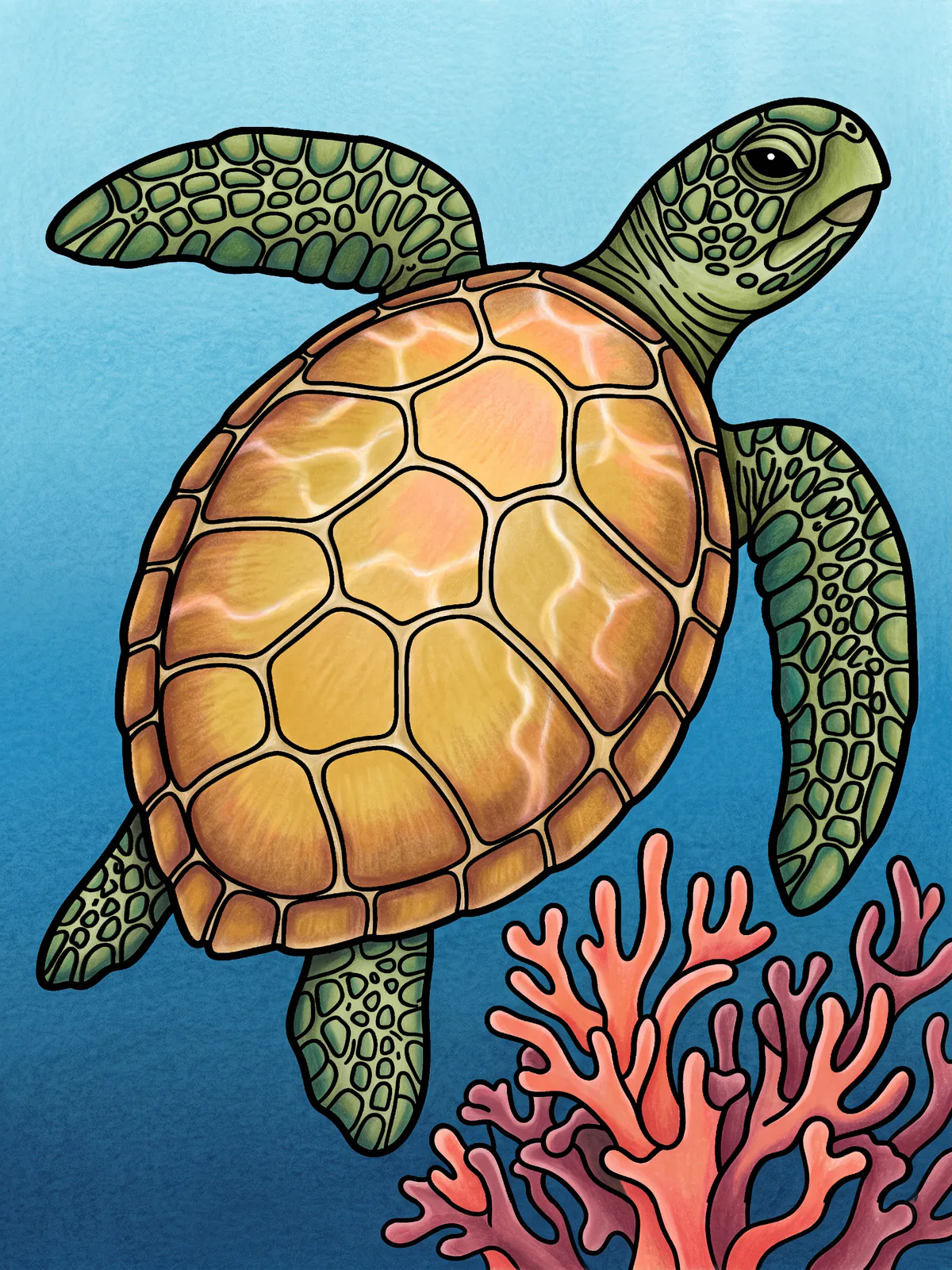
PencilDrop's pencil tool is more see-through the lighter you press, so a light stroke lets the colour underneath show through, and tilting it brings out more of the paper grain. So when a region looks flat, resist pressing harder and add another light layer in a neighbouring hue instead, a little ochre into a yellow or a little violet into a blue shadow. On a Pencil Pro, a squeeze brings the palette to the tip, handy when you change colour every few strokes.
Burnishing, and when to leave it out
Burnishing is the last pass, a heavy stroke, often in a pale colour, that presses the pigment into the grain and leaves a smooth, almost glazed surface. It's lovely on a petal or a ripe plum. On paper it's also final, since a burnished patch is too waxy to take another layer. Treat it as final on the iPad too. Save it for the end, and leave plenty of the page unburnished so it keeps its texture.
Soft and hard edges
Where two shapes meet, decide which one is in front and give it the crisper edge. The one behind can soften a little towards the line. We map every shape before a page goes out, so colour stays inside the lines and a stroke can run right up to an edge without going over. Crisp edges are the easy part. Soft ones take a lighter hand as you near the line, and if you overshoot, double-tap the Pencil for the eraser and take a little back with light pressure.
When every edge is equally hard, a page starts to look like a diagram. Three or four soft ones usually fix it.
A routine for one evening
Zoom in. Start at a quarter pressure and lay in the big areas with the Pencil tilted, then sit it upright for the edges. Build the darks over three light passes. Burnish only what should shine, if anything. Then zoom right out and squint. Is the light coming from one side?
If it is, enter it. There's a new page tomorrow, and you'll probably press a little lighter on that one too.
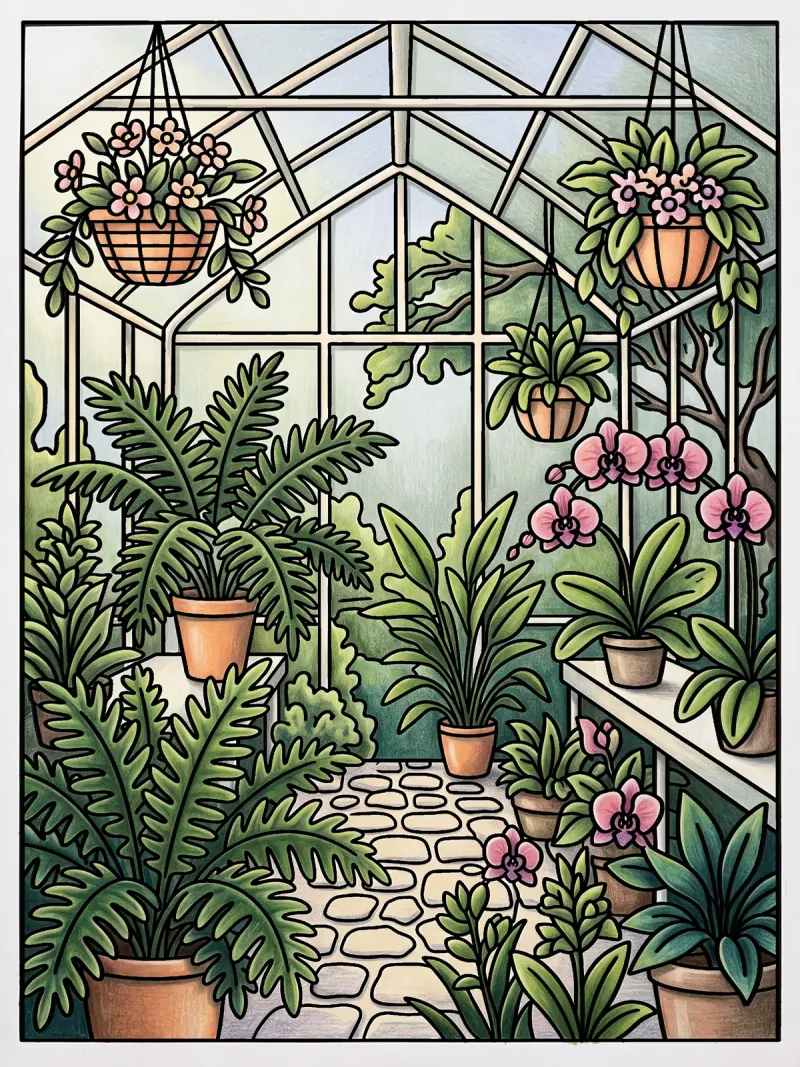
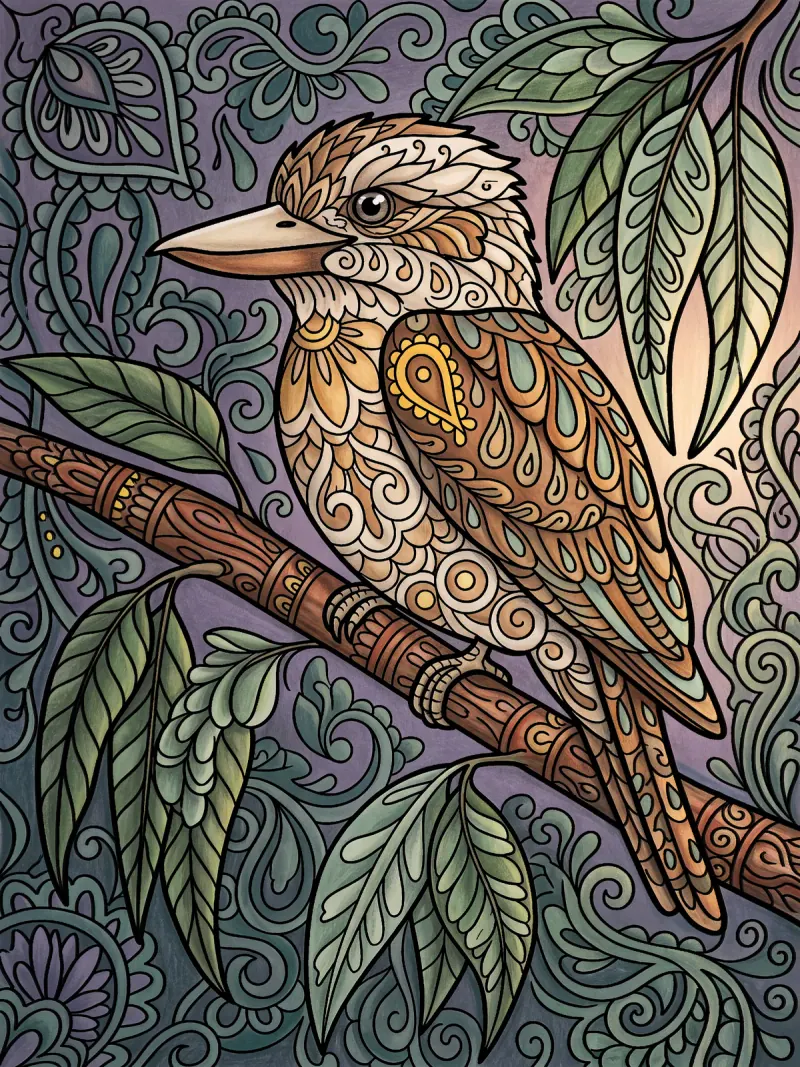
These are our own examples of what a page can become, each coloured to a written colour plan. They aren’t competition entries.