A colouring app for Apple Pencil: what each Pencil does in PencilDrop
PencilDrop is a free colouring app that uses what your Apple Pencil can do: pressure, tilt, hover and double tap, and the Pencil Pro’s squeeze, barrel roll and haptics.
If you've bought an Apple Pencil, you want a colouring app that reads it properly rather than treating it as a very precise finger. PencilDrop reads what the Pencil reports: how hard you press, the angle you hold it at, where the tip hovers, and on the newer Pencils the double tap, the squeeze and the roll of the barrel. Here's what each of those does on the page, which Pencil gives you which, and how to use them to colour better.
What does each Apple Pencil do in PencilDrop?
Every Apple Pencil colours. What changes from one to the next is how much of your hand the iPad can read.
- Apple Pencil (1st generation): pressure and tilt.
- Apple Pencil (2nd generation): pressure and tilt, double tap for the eraser, and hover on an M2 iPad Pro.
- Apple Pencil (USB-C): tilt, and hover on the iPads that support it. It doesn't sense pressure, so with this one you build depth with tilt and layers.
- Apple Pencil Pro: pressure, tilt, hover and double tap, plus squeeze, barrel roll and a small tap you can feel in your hand. It pairs only with recent iPad Pro, iPad Air and iPad mini models, so check that yours is one before you buy it.
You don't need to tell PencilDrop which one you have. It works out what your Pencil can do as you use it, and never shows you a control for something it can't.
Pressure: the control you'll use most
Each brush answers pressure in its own way. Press lightly with the pencil and you get a thin, see-through line; press harder and it widens and fills in. The crayon does the same with more texture. The airbrush sprays more colour the harder you press, the chisel gets thicker, and the marker keeps its width and only deepens a little. The eraser follows pressure too, so a light touch takes a little colour back and a firmer one takes more. (The pencil, marker, crayon and airbrush are free; the chisel and watercolour are PencilDrop Plus brushes.)
The way to use it is to stay at the light end. Two light passes give a smoother, more even tone than one heavy one, and they leave you somewhere to go for the darks. If a patch looks flat, add another light layer in a neighbouring colour rather than pressing harder. Our guide to shading with an Apple Pencil takes layering further.
Tilt: shading with the side of the lead
Lay the Pencil over, as you would to shade with the side of a real pencil, and the pencil and crayon broaden into a soft band with more of the paper grain showing, laid in the direction the Pencil points. The airbrush, chisel and watercolour broaden as you tilt too. The marker ignores tilt, so it stays even however you hold it.
That gives you two marks from one brush without opening a menu. Fill the body of a shape with broad, tilted strokes that overlap by about a third, then bring the Pencil upright for the edges and the small shapes.
Hover: see the mark before you make it
On an iPad and Pencil that support hover, hold the tip just above the glass and an outline shows the mark you're about to make, in its size, shape and colour. Tilt the Pencil and a pencil or crayon outline stretches into the ellipse it will lay down. The outline goes the moment the tip touches the glass, so it never sits over your stroke, and comes back when you lift.
It's most useful at the start of a stroke. Line the outline up with the tip of a petal or the corner of a window and you land exactly where you meant to, and you can check the brush is the right size for a small shape before it touches the page.
Double tap: the eraser and back
On a Pencil (2nd generation) or a Pencil Pro, double-tap the Pencil to switch to the eraser. Double-tap again and you're back on the tool you had, at the same size and in the same colour. PencilDrop does this whatever your iPad's double-tap setting names, unless you've turned double tap off or set it to run a shortcut, which it leaves alone.
The eraser keeps to the shape you start in, so you can take back an overshoot along one side of a line without touching the shape on the other.
Pencil Pro: squeeze, roll and a tap you can feel
Squeeze does what you chose in Settings › Apple Pencil on your iPad. Set it to show the palette and a squeeze brings PencilDrop's colours to the tip of the Pencil: the colour in hand, the palette's colours around it, an eyedropper and the brush size. A second squeeze puts them away. When you change colour every few strokes, which is most of the time once you're shading, that saves a trip to the edge of the screen each time. If you've turned squeeze off, PencilDrop leaves it off.
Barrel roll turns the chisel's flat nib as you draw, like a calligraphy pen, so one stroke can run from thick to thin as you roll. The chisel is a PencilDrop Plus brush, and the round brushes ignore the roll. When your iPad isn't passing the roll on, the nib follows the way the Pencil leans instead.
Haptics. The Pencil Pro gives a light tap when a stroke reaches the edge of the shape it's colouring, when you pick a colour and when a fill lands. It lets you colour along an edge with your eyes on the colour rather than the line. You can turn it off under Profile › Apple Pencil, and your iPad's own haptics settings still apply.
Your hand can rest on the page
The first time your Pencil touches a page, PencilDrop switches to "Pencil draws only", unless you've already picked a mode. The Pencil colours, one finger pans the page and a resting hand leaves no mark. Two fingers pinch to zoom in as far as eight times, and the page redraws sharp at every zoom rather than blowing up its pixels. Mode on the tool strip changes it.
Colour that stays inside the lines
We map every shape of every page before it goes out, so a stroke stays inside the shape it starts in even when your hand runs over the line. That's what lets you colour quickly up to an edge with a broad, tilted stroke and keep the edge clean. Turn on Fill and a tap of the Pencil fills a whole shape at once, which is a quick way to lay a base colour before you shade over it.
Does the ink keep up with the Pencil?
PencilDrop reads every sample the Pencil sends, rather than one per refresh of the screen, so a quick curve keeps its shape. It also draws a little ahead of the tip using the iPad's own prediction and corrects the line as the real samples arrive, so the ink stays close to the nib.
Can you colour without a Pencil?
Yes. One finger colours, two fingers pan and zoom, and with Fill on a tap fills a shape. Without pressure, PencilDrop reads the speed of the stroke instead, so slow strokes put down more colour than quick ones. Entries coloured by finger go on the same leaderboards, and judges never see what anyone coloured with.
Colouring on a Galaxy tablet instead? Here's what PencilDrop does with an S Pen, and for other pens, which Android styluses get pressure, tilt and hover.
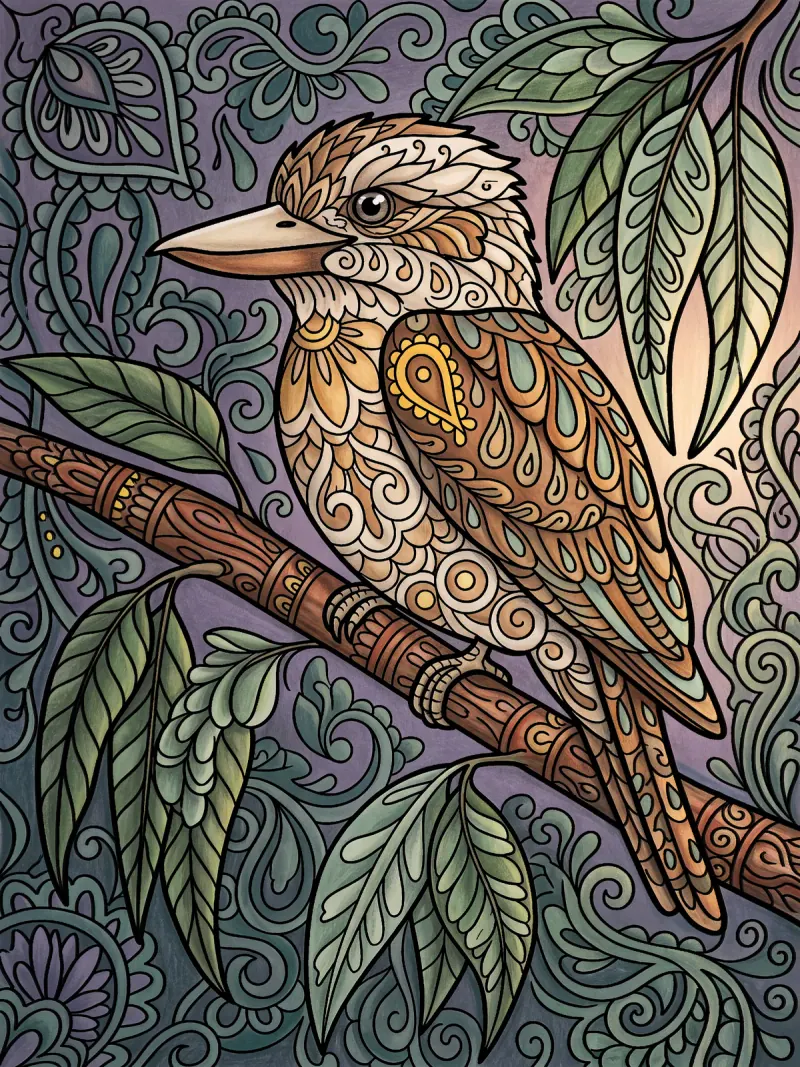
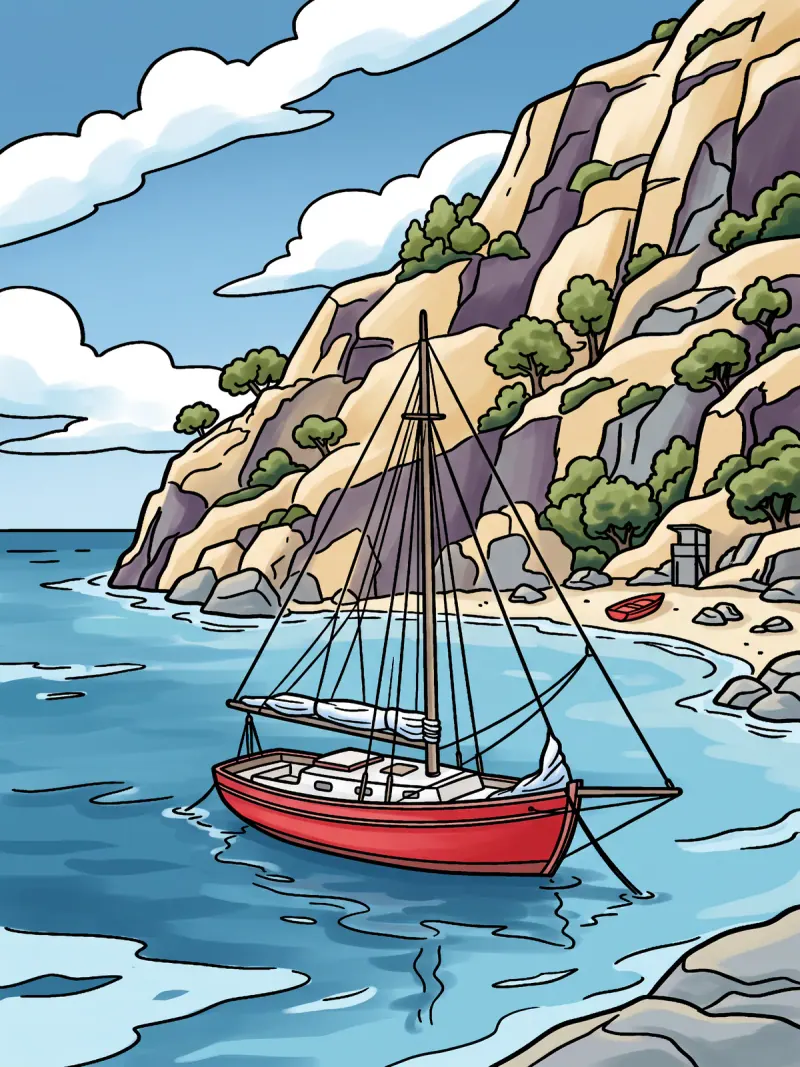
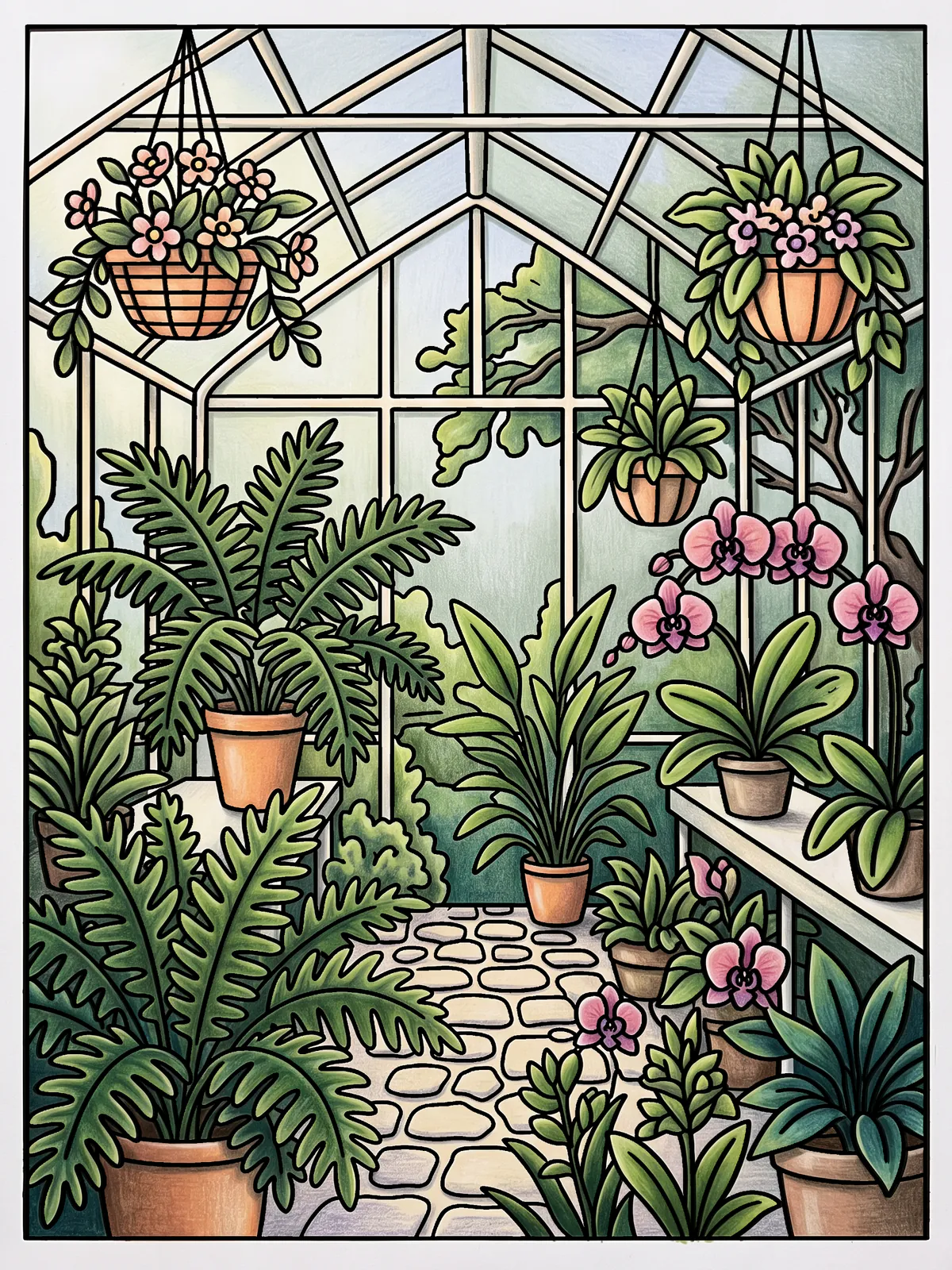
These are our own examples of what a page can become, each coloured to a written colour plan. They aren’t competition entries.
Quick answers
Does PencilDrop support Apple Pencil pressure?
Yes. With an Apple Pencil (1st or 2nd generation) or an Apple Pencil Pro, pressing harder makes each brush wider, denser or both, each in its own way. The Apple Pencil (USB-C) doesn’t sense pressure, so with it you shade with tilt and layers.
Which Apple Pencil is best for PencilDrop?
The Apple Pencil Pro does the most, because it adds squeeze, barrel roll and haptics to pressure, tilt, hover and double tap, but it pairs only with recent iPad Pro, iPad Air and iPad mini models. Every Apple Pencil works, and none of them changes how your entry is judged.
Does Apple Pencil hover work in PencilDrop?
Yes, on an iPad and Pencil that support hover. Hold the tip just above the glass and an outline shows the size, shape and colour of the mark you’re about to make.
What does double tap do in PencilDrop?
It switches to the eraser, and a second double tap brings back the tool, size and colour you had. It works on the Apple Pencil (2nd generation) and Apple Pencil Pro, unless double tap is off in your iPad’s settings or set to run a shortcut.
Can I use PencilDrop without an Apple Pencil?
Yes. A finger colours, a tap with Fill on fills a shape, and slow strokes put down more colour than quick ones. Entries coloured by finger compete on the same leaderboards, and judges can’t see what you coloured with.
Apple Pencil and iPad are trademarks of Apple Inc., Galaxy and S Pen of Samsung Electronics, and Android of Google LLC; other names are their owners’ trademarks. PencilDrop isn’t made or endorsed by any of them.